How to Use Alt Text Generator with BigCommerce
Automate Alt Text Generation with BigCommerce App

Alt Text Generator AI integrates seamlessly with BigCommerce, allowing you to automate alt text generation for images across your favorite apps. This step-by-step tutorial will show you how to set up and use our BigCommerce app to streamline your workflow.
1
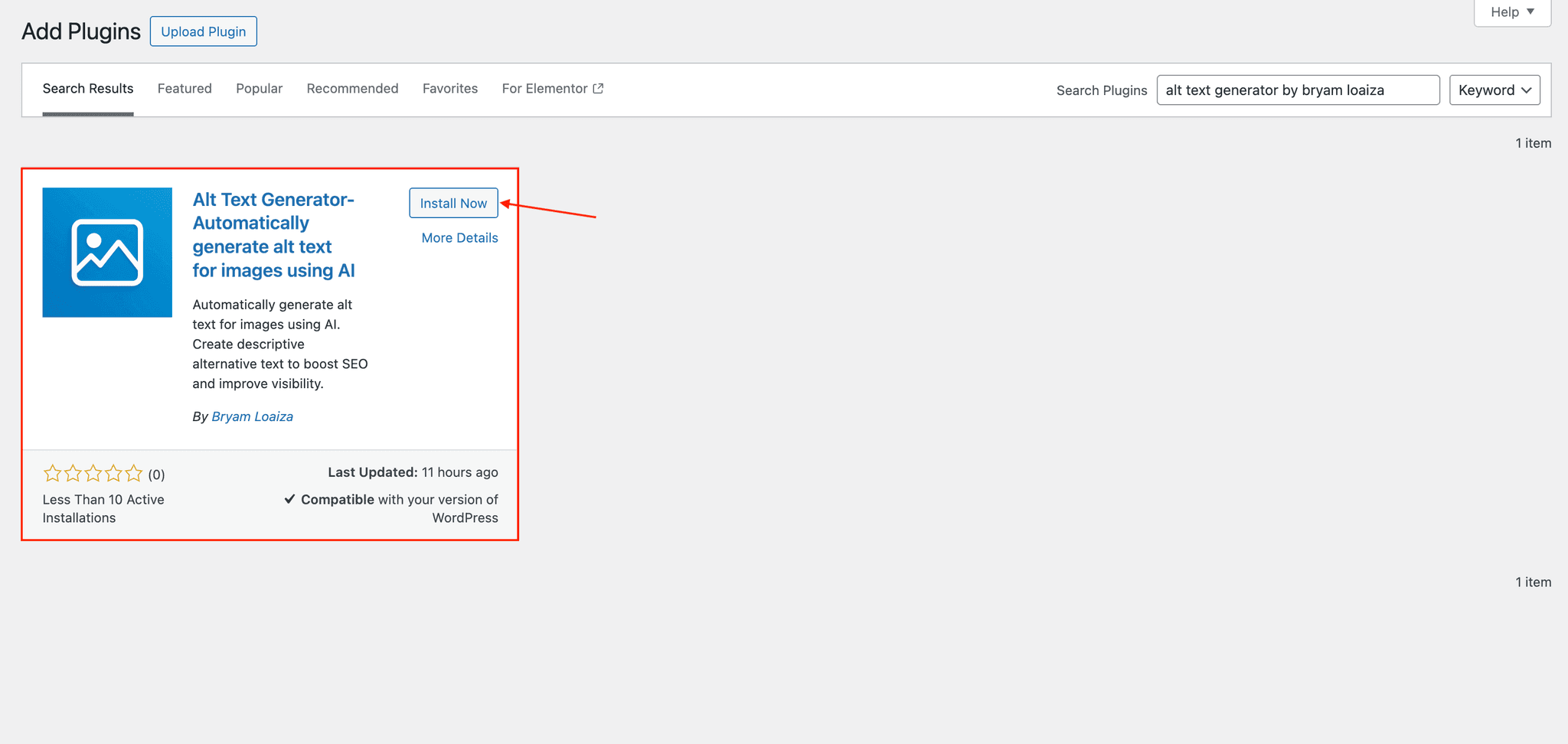
Installing the App
- Go to the BigCommerce App Market
- Search for "Alt Text Generator"
- Install the Alt Text Generator app
2
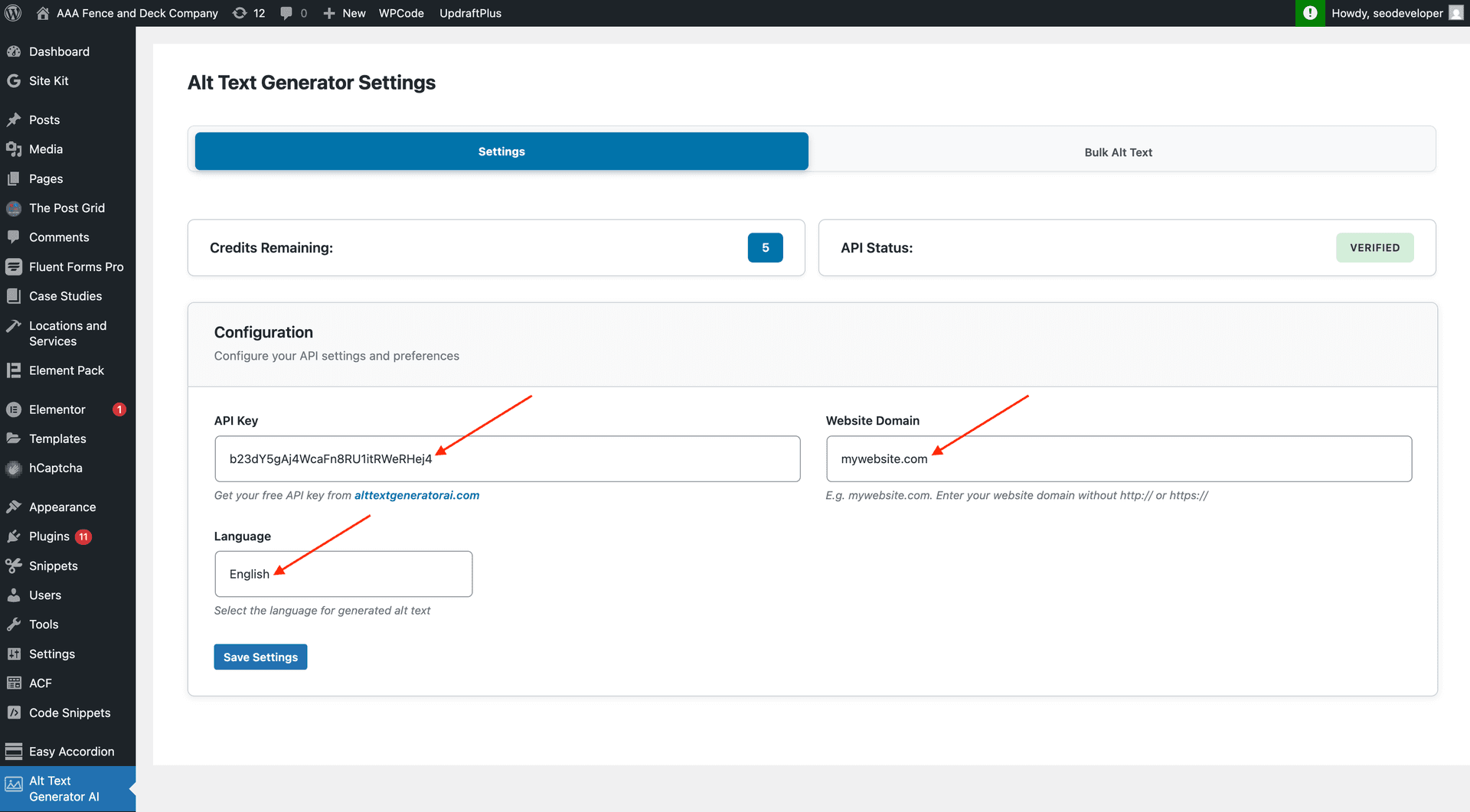
Setting Up Your API Key
- Create an account on AltTextGeneratorAI.com
- Go to your dashboard and copy your unique API key
- Return to your WordPress dashboard
- Navigate to Sidebar > Alt Text Generator AI
- Paste your API key, set website and language in the designated fields
- Click Save Settings
⚠️Your API key is unique to your account.
3a
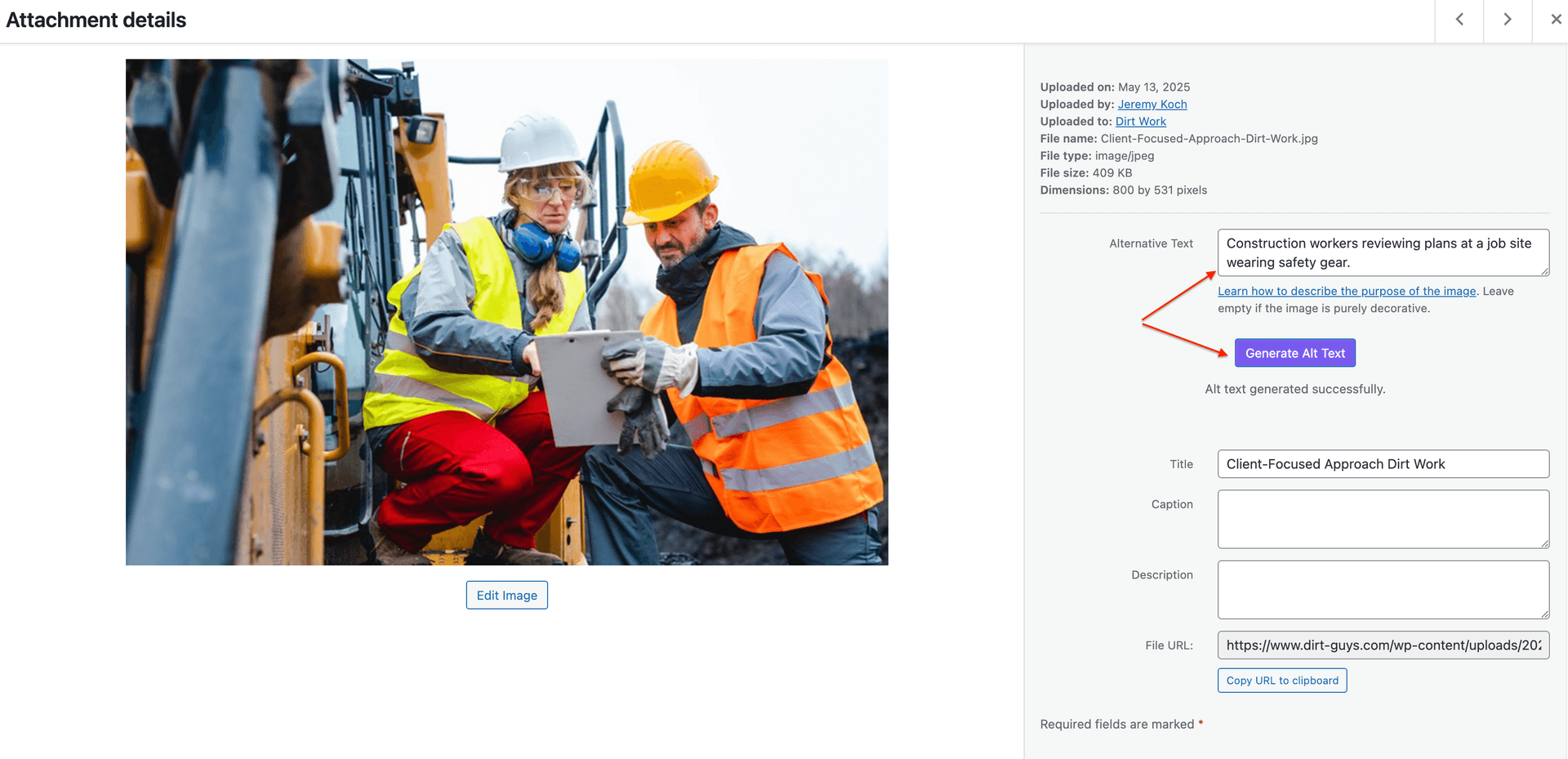
Generate Alt Text (Manually)
- Navigate to Media > Library
- Go to any of your images
- Click on the Generate Alt Text button
- Done! Alt text will be generated automatically.
3b
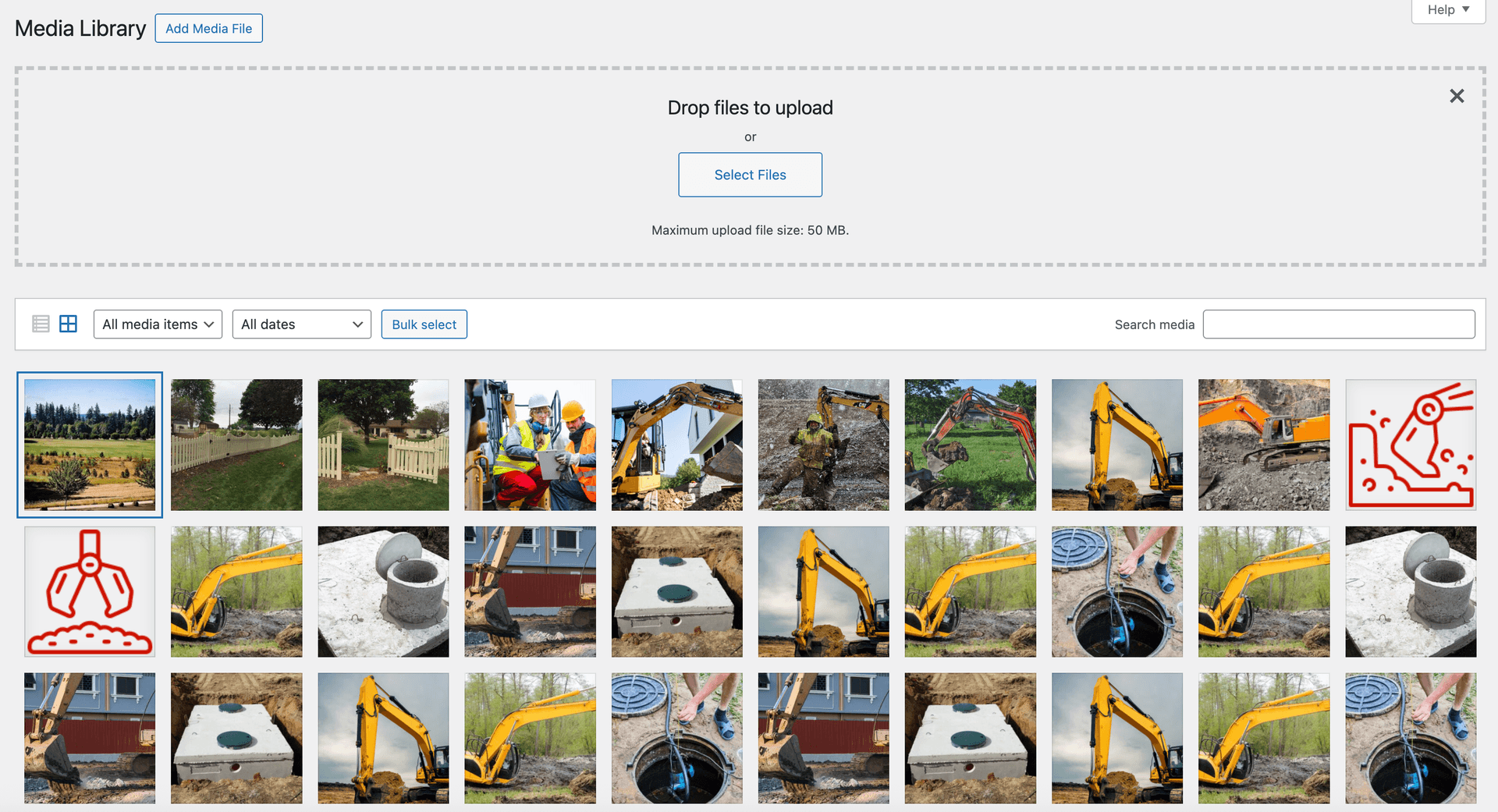
Generate Alt Text (Automatic)
- Navigate to Media > Library > Add Media File
- Upload as many images as you would like
- Once images are uploaded, alt text will be generated automatically for them
3c
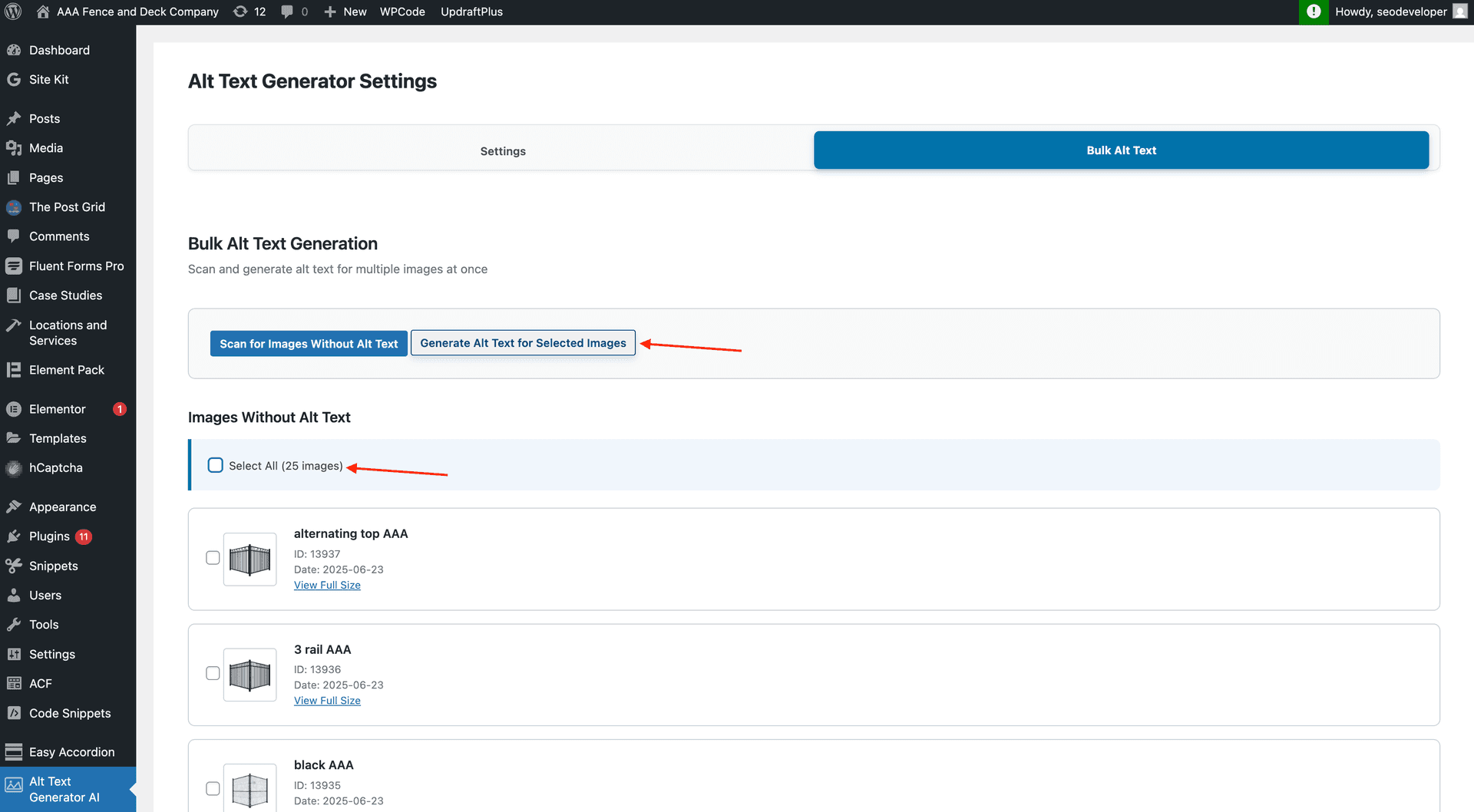
Generate Alt Text (Bulk Feature)
- Click on Bulk Alt Text
- Click on Scan for Images Without Alt Text
- You will see a list of images without alt text
- Select images you want to generate alt text for and click on Generate Alt Text for Selected Images
- Images will be processed and alt text will be generated automatically
- You can review the alt text generated by going to the Media Library
🎮
Need Further Assistance?
Our support team is ready to help with any questions or issues you might encounter.