How to Add Alt Text to Images in DatoCMS
Alt Text Generator AI DatoCMS Plugin - Complete Tutorial
Bulk
Media Area generation
Alt text
page for missing images
130+
Languages
All
locales at once
WCAG
& ADA compliant
Alt Text Generator AI is an AI-driven tool that automatically generates SEO-optimized alt text for your images. The DatoCMS Plugin makes it even easier to optimize images in your content management system, improving SEO rankings on Google and other search engines.
Enhance your website's SEO performance and accessibility directly from your DatoCMS projects with automatically generated alt text for images.
What you get:
- Bulk alt text generation for the images you select in the Media Area
- An Alt text page that lists every image without alt text
- Alt text for records: single asset and gallery fields
- All locales at once, each written in its own language
- 130+ languages
- Support for JPEG, PNG, GIF, WebP, AVIF and SVG images
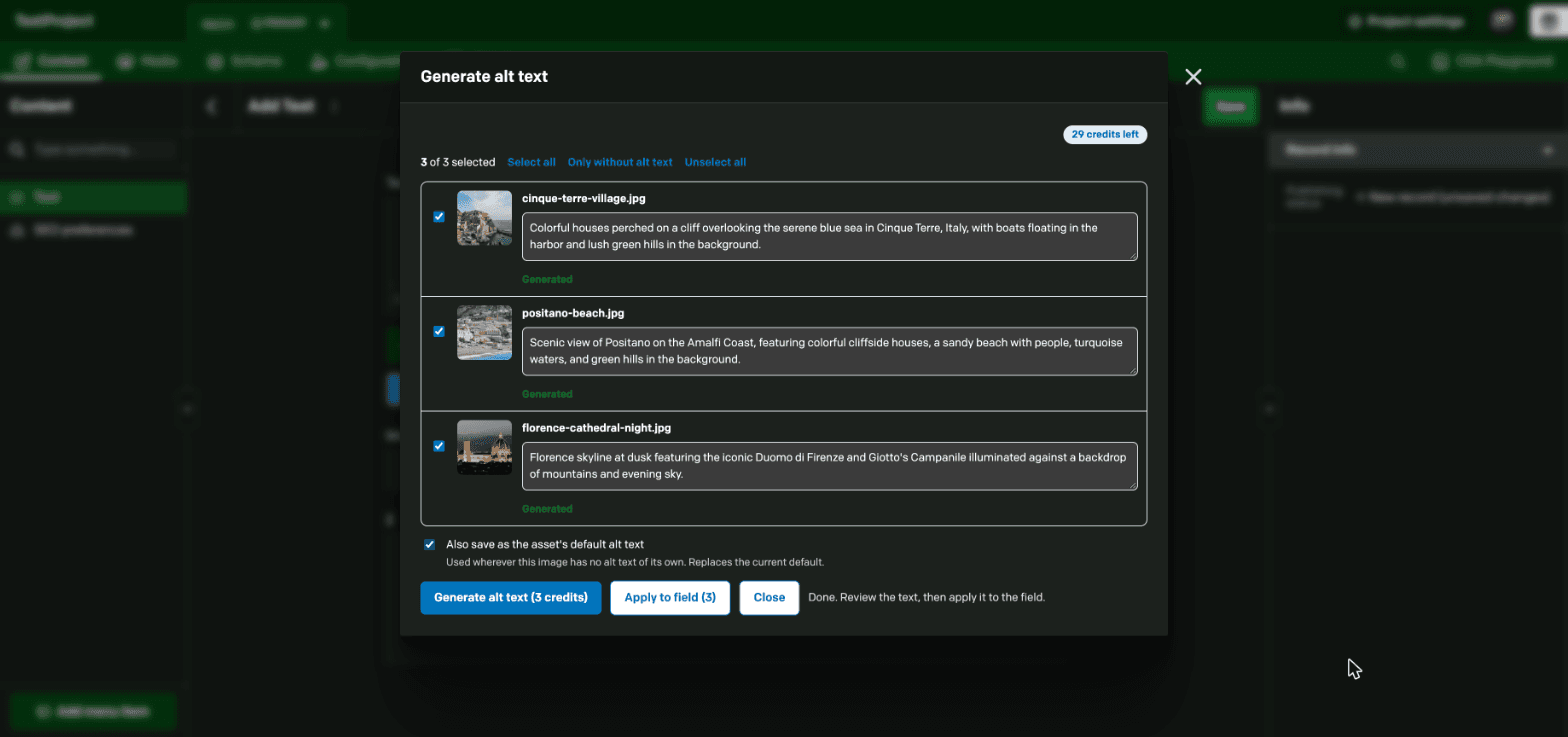
- Edit every description before saving
Follow this step-by-step tutorial to add alt text to your DatoCMS images.
Install the Plugin
- Open your project in DatoCMS and go to Configuration > Plugins
- Click Add a new plugin and search for Alt Text Generator AI
- Click Install and approve the permission to read and update assets
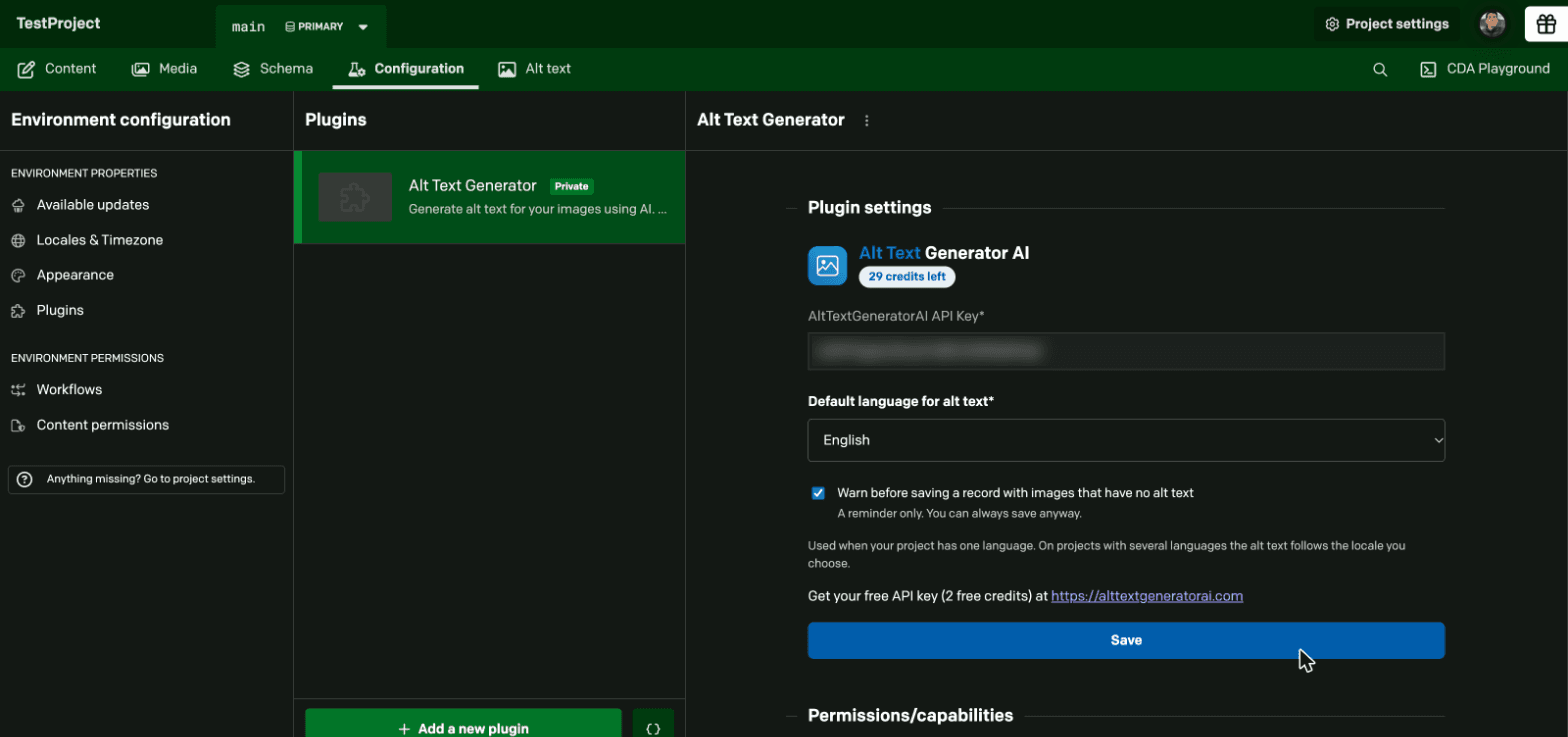
Add Your API Key
- Create an account on AltTextGeneratorAI.com and copy your API key from the dashboard
- Open the plugin settings in DatoCMS and paste the key in the API key field
- Choose your Default language from the list of 130+ languages
- Click Save. Your remaining credits show at the top
Generate Alt Text in the Media Area
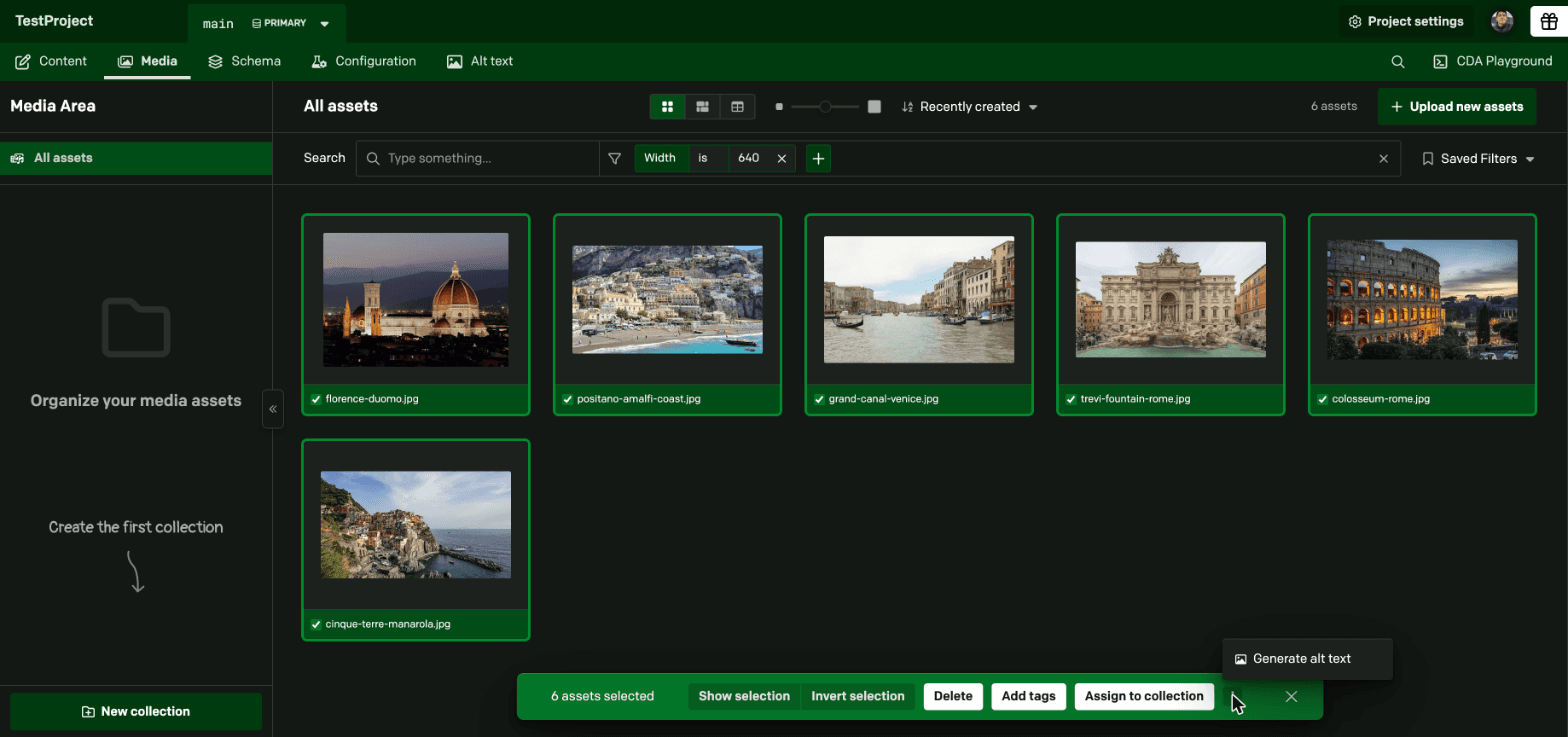
- Go to Media and check the images you want
- Open the menu (the three dots) in the selection bar and click Generate alt text
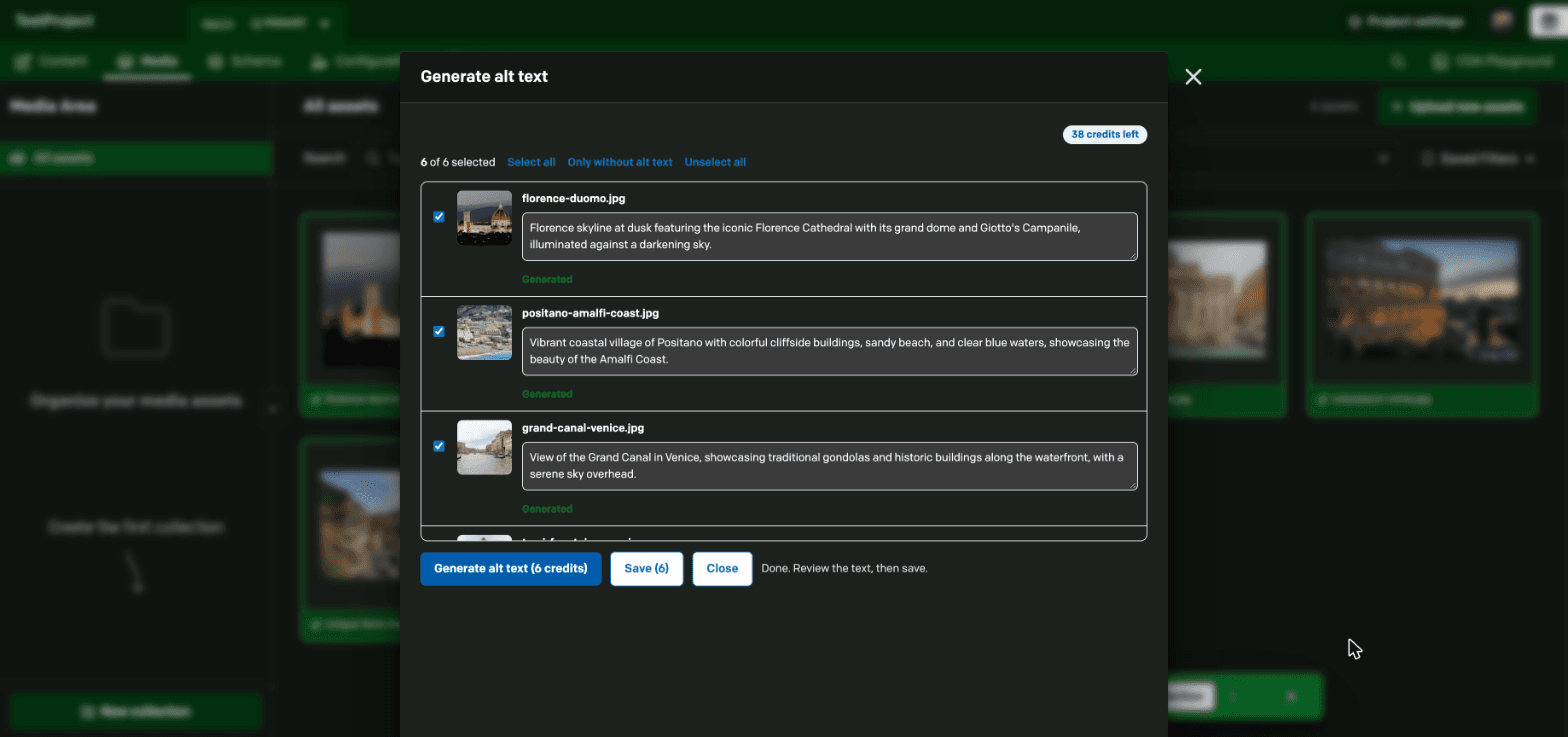
- Click Generate alt text in the window. The cost in credits is shown on the button
- Review or edit the descriptions, then click Save
Find Every Image Without Alt Text
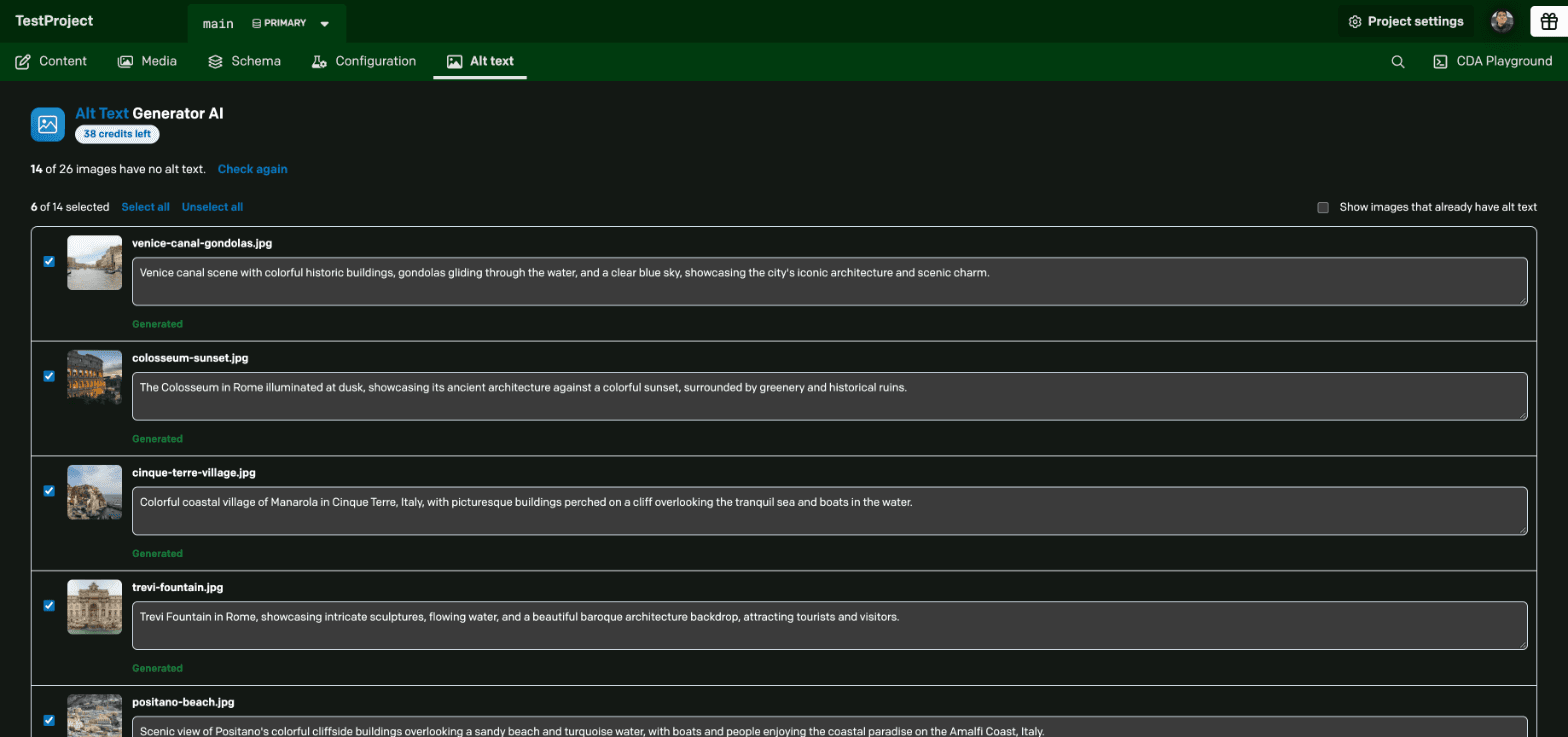
- Open the Alt text tab in the main menu
- The page lists every image that has no alt text. Uncheck the ones you want to skip
- Click Generate alt text, review the descriptions and click Save
- Check Show images that already have alt text if you want to redo some of them
Generate Alt Text in a Record
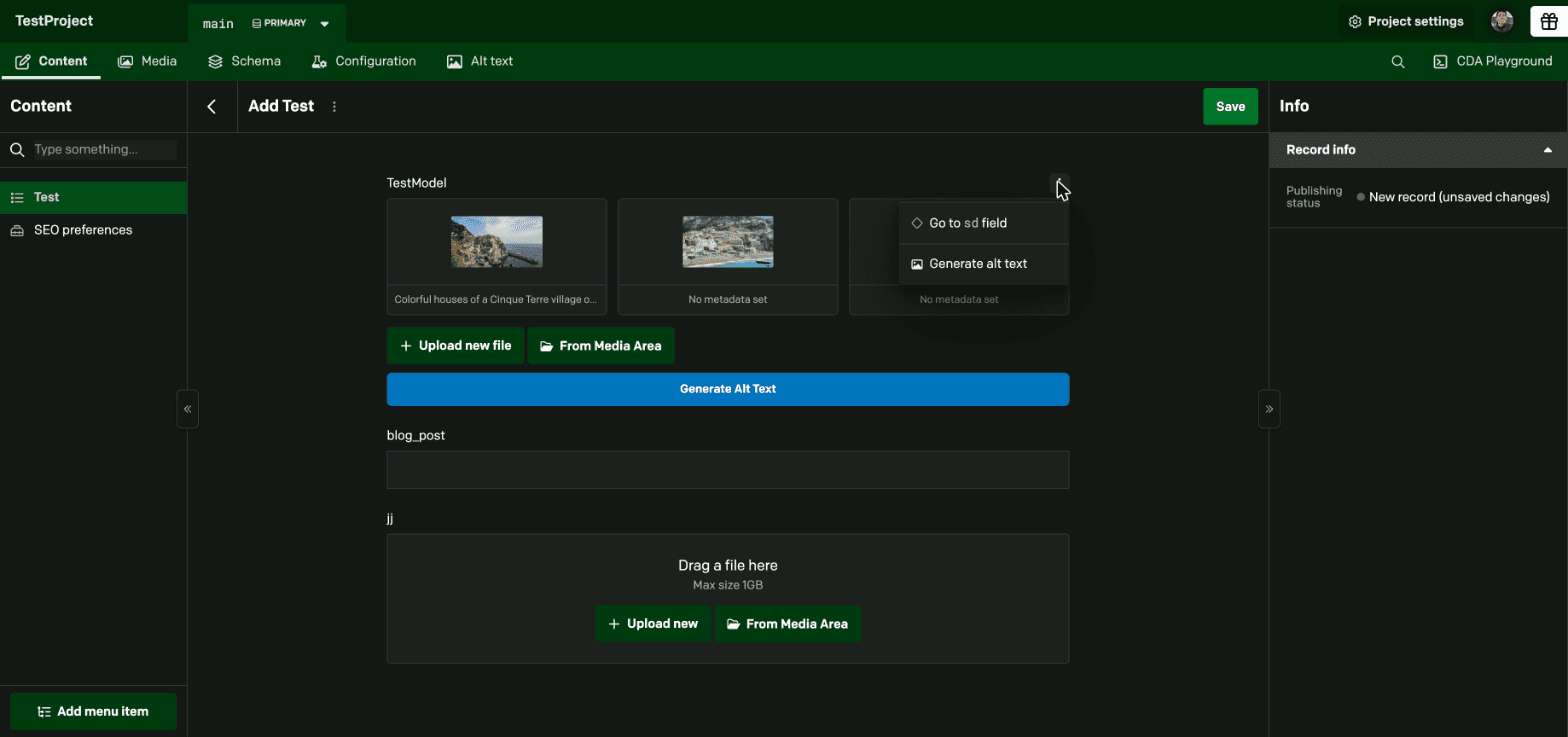
- Open a record with a single asset or gallery field
- Open the menu of the field and click Generate alt text, or use the button under the field
- Generate, review and click Apply to field, then save the record
- Optional: check Also save as the asset's default alt text so every record that uses the image gets it
Plugin Features
Media Area Bulk Generation
Select many images in the Media Area and generate alt text for all of them in one go.
Alt Text Page
A tab in the main menu that lists every image without alt text, with generate and save on the same page.
Locales and 130+ Languages
Fill one locale or every missing locale at once. Each one is written in its own language.
Review Before Saving
Every description can be edited. Nothing is saved until you click Save.
Records and Assets
Generate from a single asset or gallery field, or save the alt text as the asset's default.
Also Save as Default
One checkbox saves the text on the asset too, so every record that uses the image gets it.
Many Image Types
Works with JPEG, PNG, GIF, WebP, AVIF and SVG. SVG and AVIF are converted automatically.
One-Time Credits
No monthly subscription. Credits never expire. New accounts get 2 free credits.
DatoCMS Plugin FAQs
What is the Alt Text Generator AI DatoCMS plugin?
It is a DatoCMS plugin that writes SEO-friendly alt text for your images using AI, right inside the DatoCMS dashboard. You can generate it in the Media Area, in records, or from the Alt text page.
How do I install it?
In your DatoCMS project go to Configuration, then Plugins, click Add a new plugin and search for Alt Text Generator AI. Then paste your API key from the AltTextGeneratorAI.com dashboard into the plugin settings.
Can I generate alt text for many images at once?
Yes. Select the images in the Media Area, open the menu in the selection bar and click Generate alt text. You can also use the Alt text tab, which lists every image that has no alt text.
Does it work with several locales?
Yes. On a project with several languages you can pick a locale, or All locales to fill every missing one at once. Each locale is written in its own language.
Where is the alt text saved?
In the Media Area it is saved on the asset itself, as its default alt text. In a record it goes into the field you are editing, and the record still needs to be saved. A checkbox can also save it as the asset's default.
Can I edit the alt text before it is saved?
Yes. Every description can be edited in the window, and nothing is saved until you click Save.
What image formats and languages are supported?
JPEG, PNG, GIF, WebP, AVIF and SVG images, and more than 130 languages.
Do I get free credits?
Yes. New accounts get 2 free credits to try the plugin. Credits are one-time payments, never expire and work on every Alt Text Generator AI integration.
Activate Your Plugin
To activate the DatoCMS Plugin, copy your API key from your dashboard and paste it into your plugin settings.