Alt Text Generator Payload Plugin
Generate SEO-optimized alt text for the images in your Payload CMS media library, one at a time, in bulk or automatically on upload

Alt Text Generator AI writes SEO-friendly alt text for your images with AI. The Payload plugin adds it to your Payload admin: a button on every image, a bulk page for your whole media library, and an optional automatic mode for new uploads. This step-by-step guide shows how to install and use it.
Better alt text helps your site's accessibility and image SEO, and saves hours of writing descriptions by hand.
Install the Plugin
- In your Payload project, run
npm install @balt1794/payload-plugin-alt-text-generator - Open
payload.config.ts, add the plugin and list the upload collections that hold your images - Add your API key to
.envasALT_TEXT_GENERATOR_API_KEY - Run
npx payload generate:importmaponce and restart your dev server
💡Needs Payload 3.92 or newer. Your API key stays on your server and never reaches the browser.
import { altTextGenerator } from '@balt1794/payload-plugin-alt-text-generator'

export default buildConfig({
  // ...
  plugins: [
    altTextGenerator({
      collections: ['media'],
      autoGenerate: true, // optional
    }),
  ],
})Update the Database (SQL Only)
- MongoDB: nothing to do
- SQLite or Postgres: the dev server updates the tables by itself
- For production, create and run a migration:
npx payload migrate:createand thennpx payload migrate
💡The plugin adds one small hidden settings table. If your collection has no alt field, it adds that too.
npx payload migrate:create
npx payload migrateFind the Plugin in the Admin
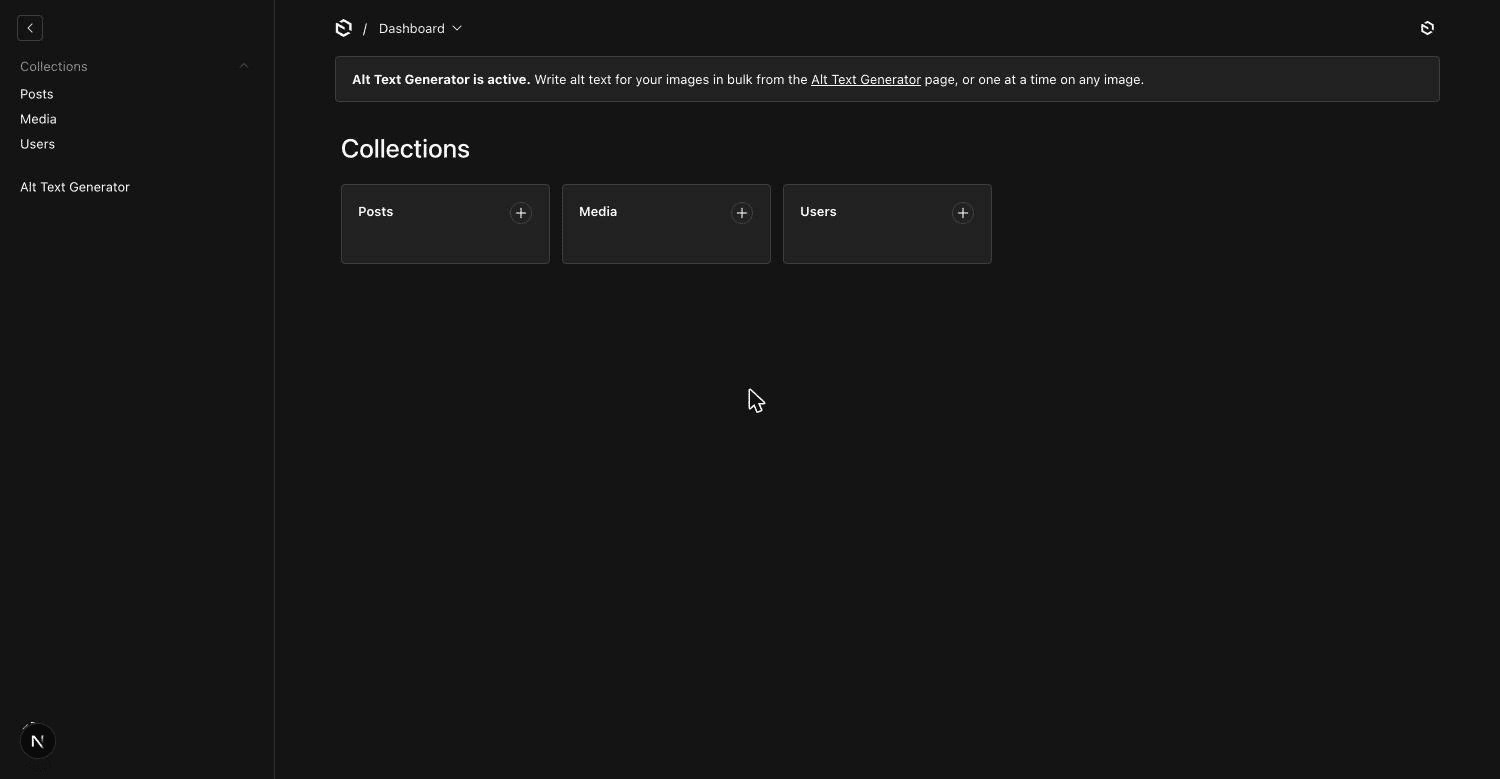
- Open the Payload admin. The dashboard shows Alt Text Generator is active
- A new Alt Text Generator link appears in the sidebar and opens the bulk page
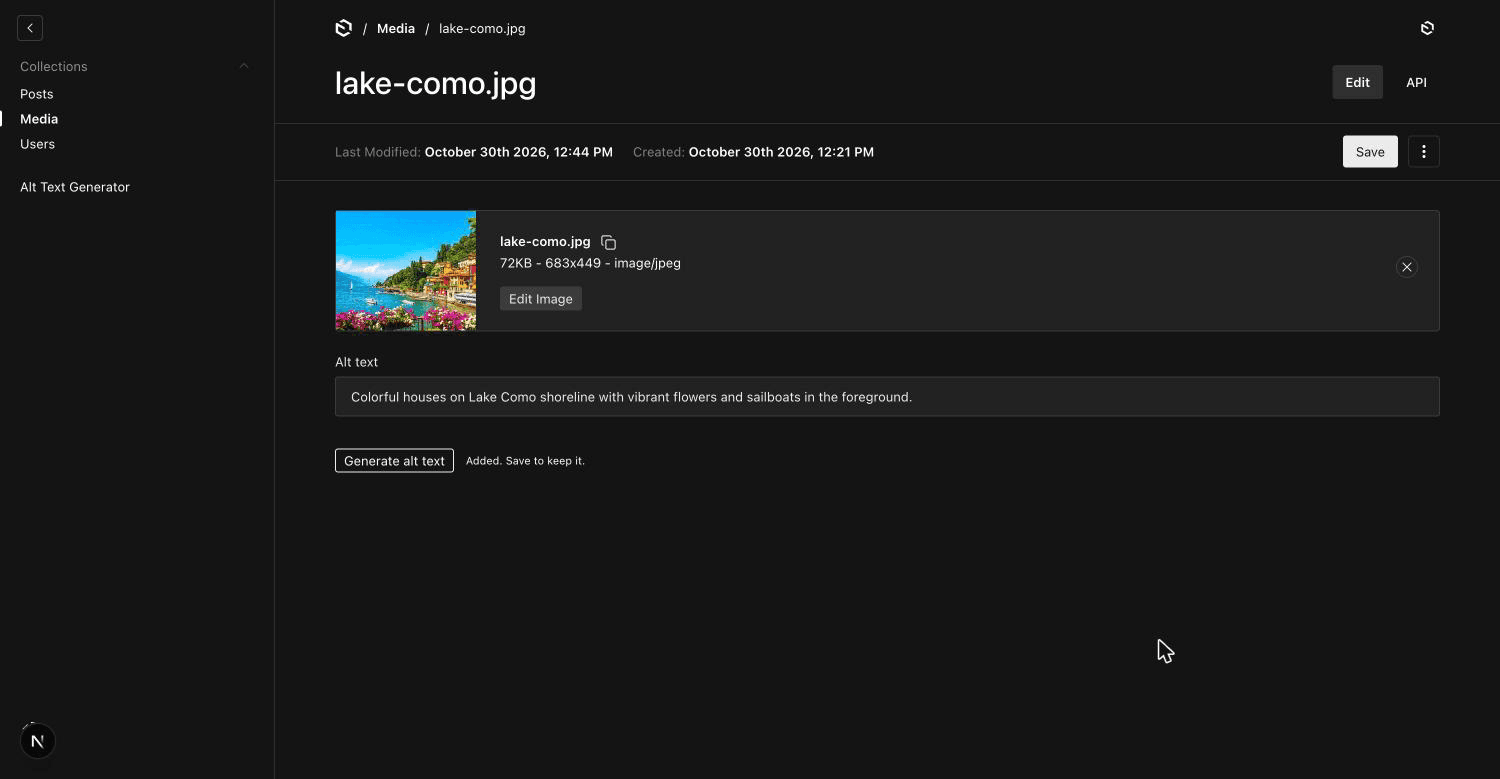
- Open any image in your media collection. A Generate alt text button sits under the alt text field
Generate Alt Text for Many Images
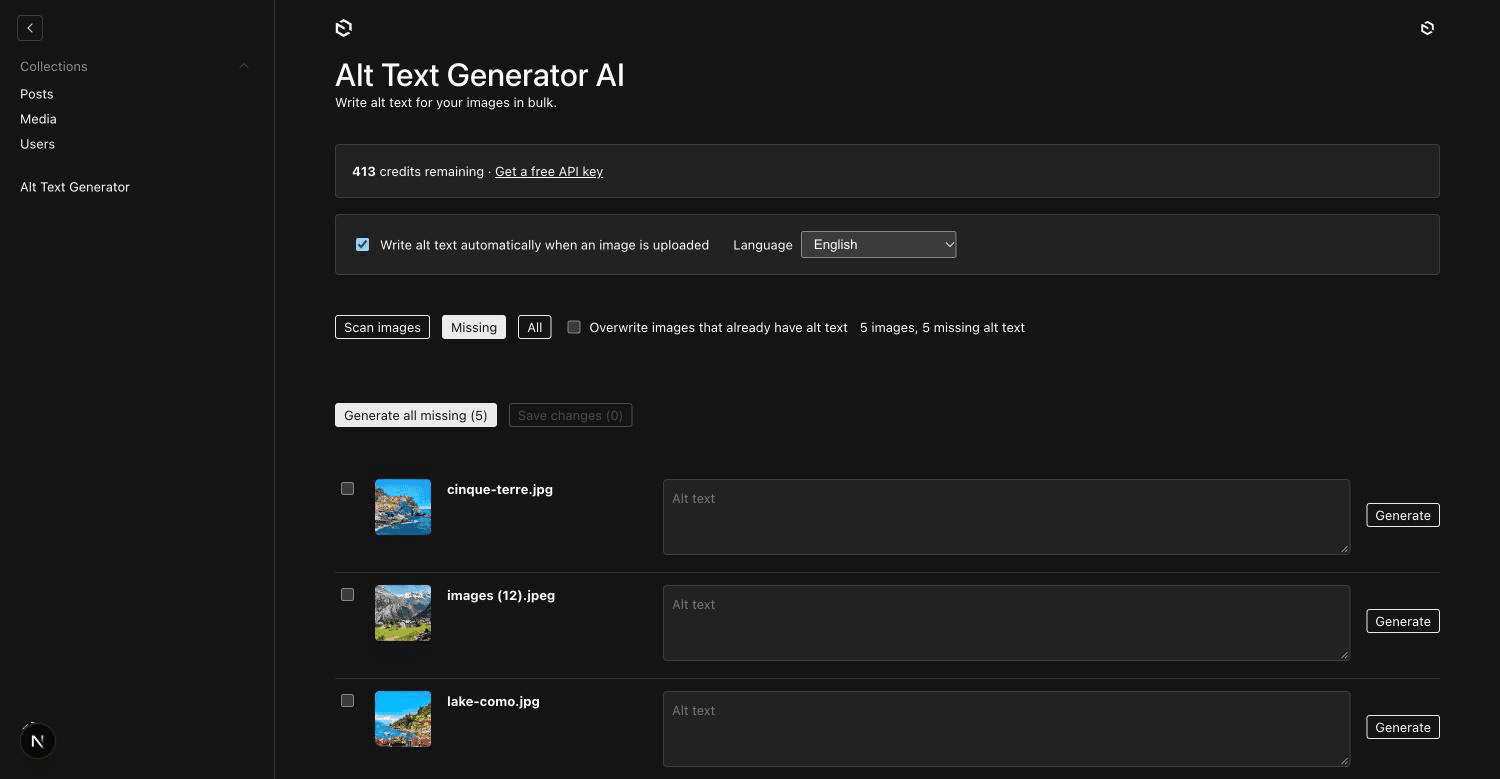
- Open Alt Text Generator in the sidebar. It scans your images and shows your credits
- Missing lists the images with no alt text. Tick the ones you want, or leave them all unticked
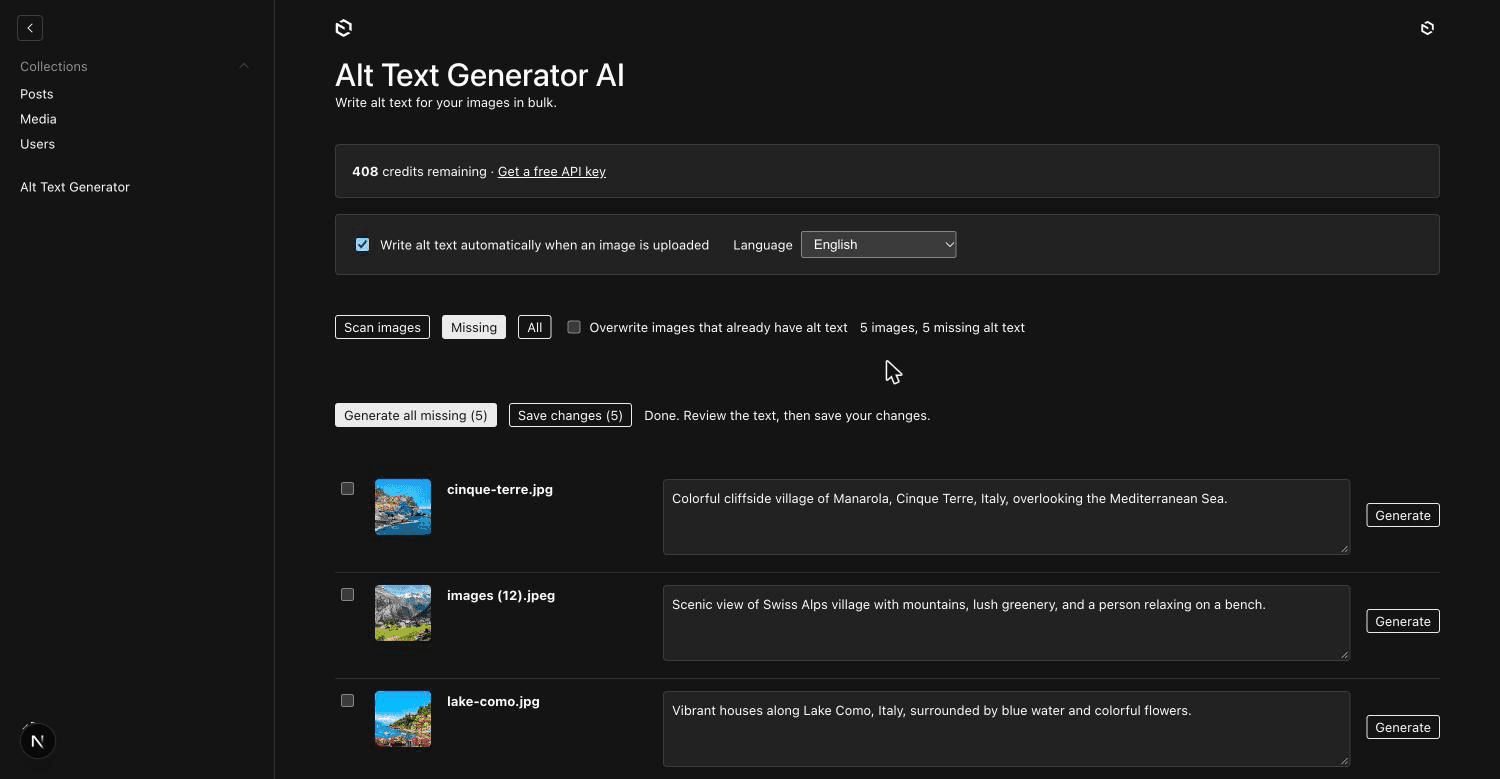
- Click Generate selected or Generate all missing. Each image uses 1 credit
- Edit any text you want to change, then click Save changes
💡Generate all missing skips images that already have alt text. Tick an image to generate it anyway, or tick Overwrite.
Generate for One Image or on Upload
- Open an image and click Generate alt text. The text fills the alt text field. Save to keep it
- Turn on Write alt text automatically when an image is uploaded on the bulk page, or set
autoGenerate: true - New uploads get alt text when you save them. Replacing an image's file writes new alt text for the new picture
Choose the Language and Who Can Generate
- Pick the language of the alt text on the bulk page, from English to Zulu
- On sites with Payload localization, the alt text is written in the language of the locale you are editing
- Each generation uses one credit. To limit it to your team, use the
accessoption
altTextGenerator({
  collections: ['media'],
  access: ({ req }) => req.user?.role === 'admin',
})Bulk Page
A sidebar page scans your media library, shows thumbnails and lists the images missing alt text. Tick the ones you want and save them all at once.
Automatic on Upload
Turn on one checkbox and new uploads get alt text when you save. Replace an image and the alt text is rewritten for the new one.
Button on Every Image
Open any image and click one button to write its alt text into the alt field.
131 Languages and Locales
Choose the language of the alt text. On localized sites it follows the locale you are editing.
Your Key Stays on Your Server
The API key is only used by the plugin's server code. The browser never sees it.
Free Credits
Sign up to get free credits and test alt text generation on your own images.
Activate Your Plugin
Install the plugin, add your API key to .env and run the import map command.