Alt Text Generator Shopware Plugin
Generate SEO-optimized alt text for the images in your Shopware media library, in bulk or automatically on upload

Alt Text Generator AI writes SEO-friendly alt text for your images with AI. The Shopware plugin adds a page to your Shopware administration that scans your media library, writes alt text for the images that are missing it and saves it in each media's own Alt text field, the one your storefront uses for the alt attribute. It can also write it for every new upload. This step-by-step guide shows how to install and use it.
Better alt text helps your site's accessibility and image SEO, and saves hours of writing descriptions by hand. It works on Shopware 6.7, including the free Community edition, with no extra license needed.
Install the Plugin
- Download the latest ZIP from the releases page, then open Extensions, My extensions and click Upload extension
- Or install it with Composer by running
composer require balt1794/alt-text-generator-ai - Run
bin/console plugin:refreshand thenbin/console plugin:install --activate AltTextGeneratorAI - Clear the cache with
bin/console cache:clear
💡Needs Shopware 6.7. Your API key stays on your server and never reaches the browser.
composer require balt1794/alt-text-generator-ai

bin/console plugin:refresh
bin/console plugin:install --activate AltTextGeneratorAI
bin/console cache:clearAdd Your API Key
- Get your API key from the dashboard
- In the administration, open Extensions, then My extensions, find Alt Text Generator AI and click Configure
- Paste the key into API key and click Save. Leave the sales channel on All Sales Channels
💡Never share the key. It is saved in the plugin settings on your server.
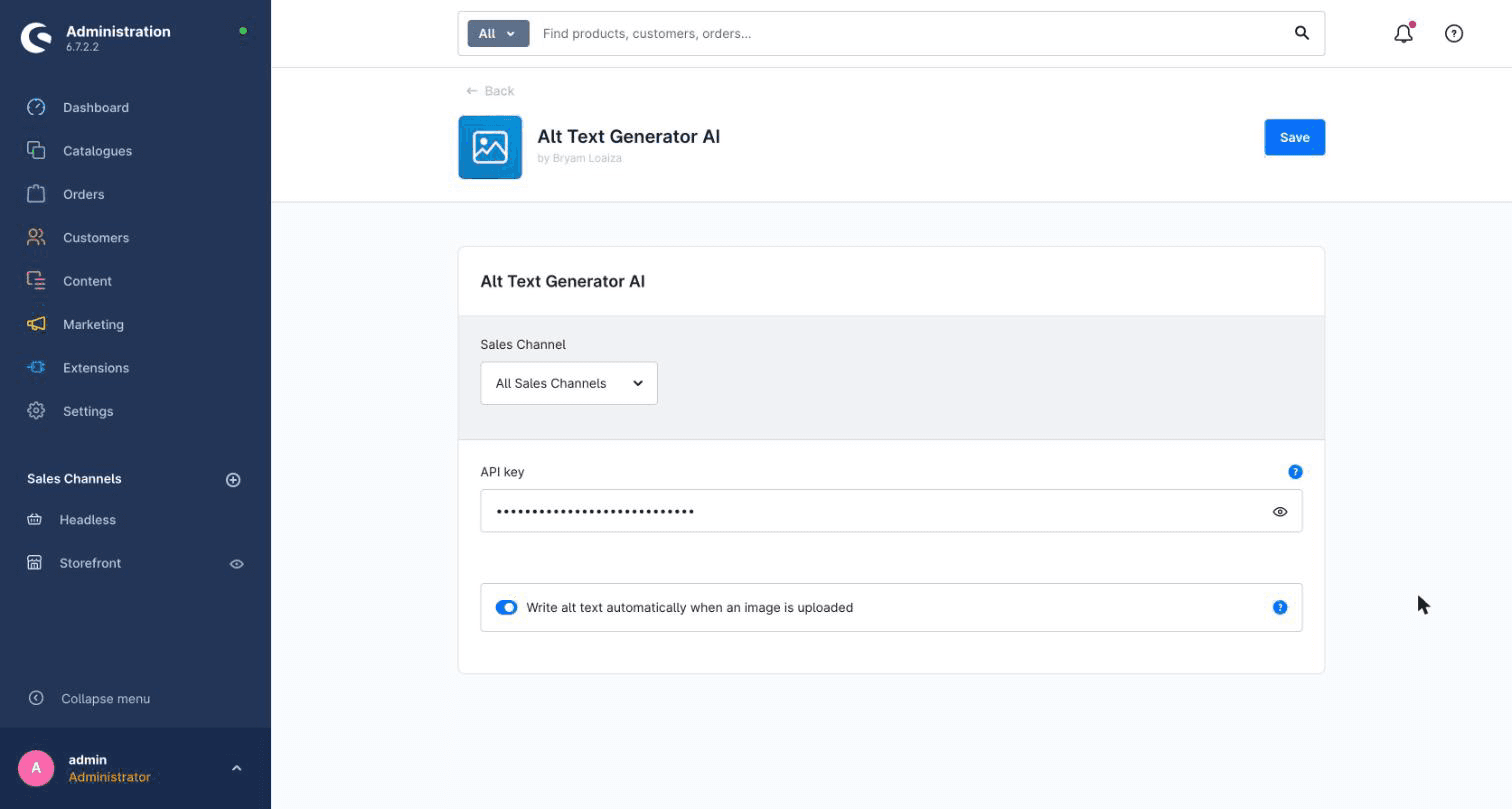
Find the Plugin in the Administration
- Open Content in the left menu and choose Alt Text Generator AI
- The page shows your credits, the language of the alt text and every image in your media library
- Missing lists the images that have no alt text. All shows everything
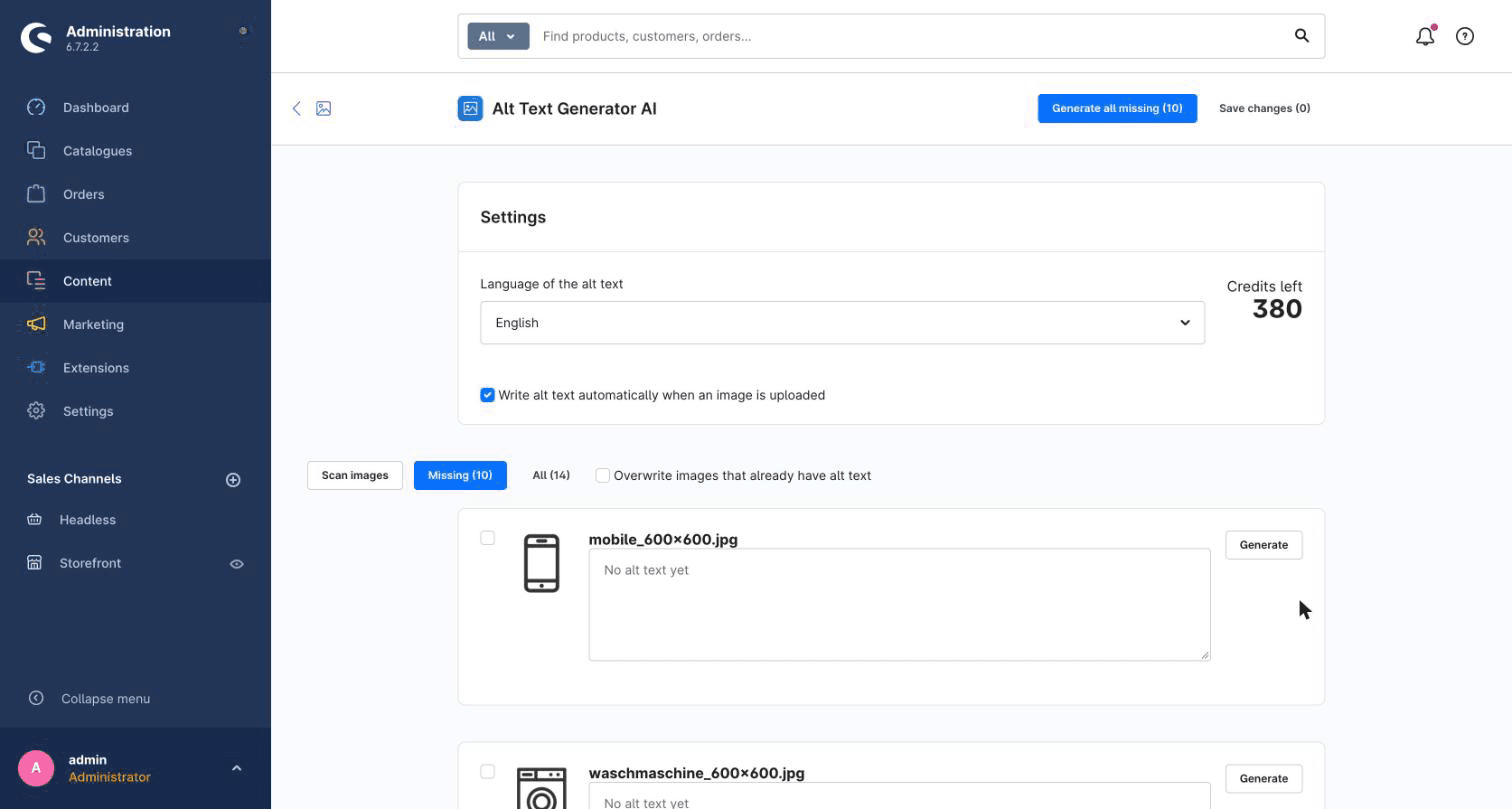
Generate Alt Text for Many Images
- Tick the images you want, or leave them all unticked
- Click Generate selected or Generate all missing. Each image uses 1 credit
- Read the results and edit any text you want to change. You can also click Generate or Regenerate on a single image
- Click Save changes to write them to your media library
💡Generate all missing skips images that already have alt text. Tick an image to generate it anyway, or tick Overwrite.
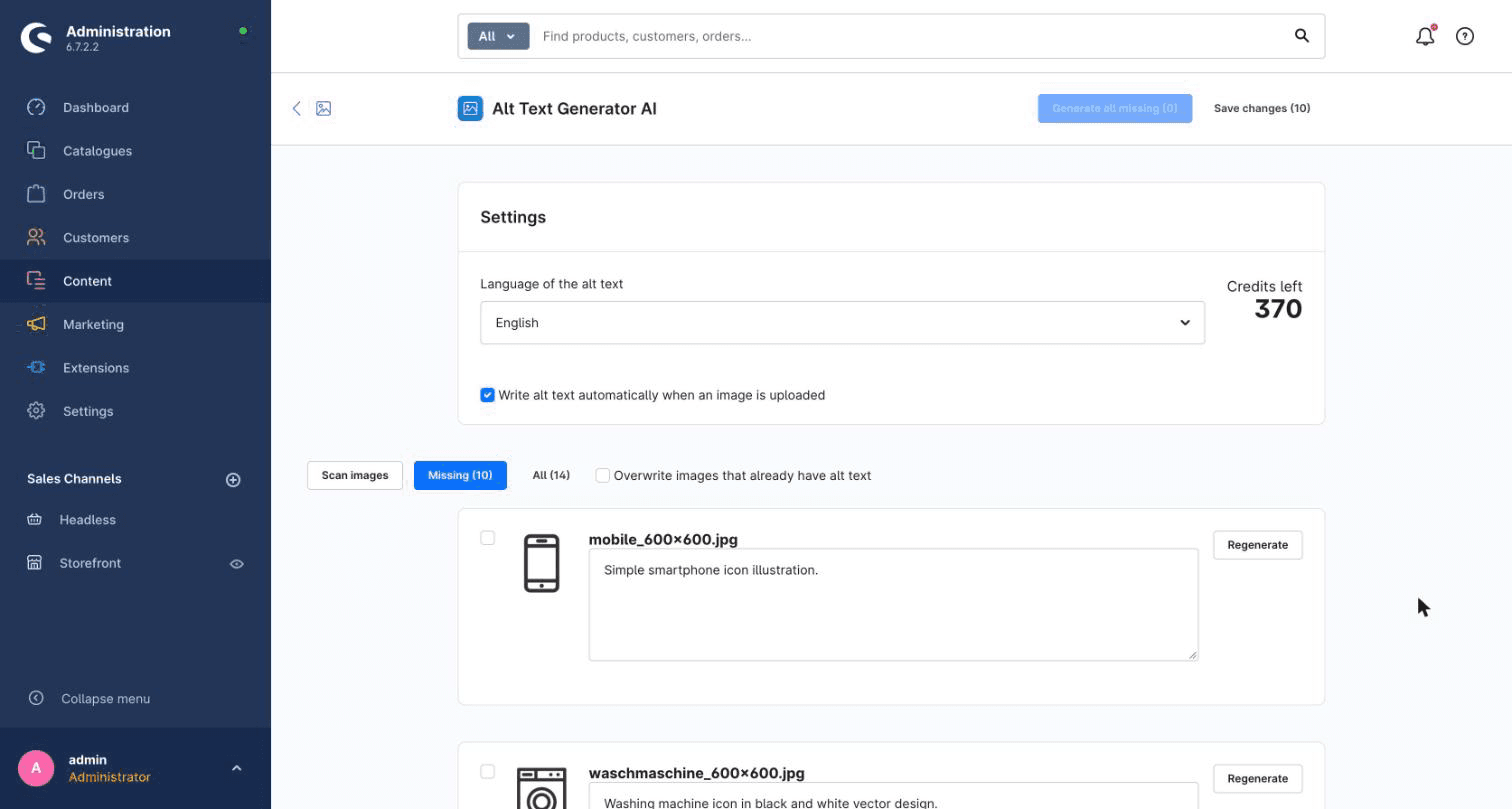
Write Alt Text on Upload
- Tick Write alt text automatically when an image is uploaded on the plugin page or in the plugin settings
- New uploads are queued and processed by the Shopware message queue, so uploading stays fast. The administration starts a worker for you by default
- The text is saved in the Alt text field of the media, which your storefront uses as the
altattribute of the image
💡Images that already have alt text are never overwritten on upload.
# If you run your own workers
bin/console messenger:consume asyncChoose the Language
- Pick the language of the alt text from the Language of the alt text list, from English to Zulu
- The choice is saved, so it also applies to automatic uploads
- The text is saved in the language you are working in in the administration, so pick both to match
- Your credits are shown on the same page. Each generation uses one credit
Language of the alt text: Spanish

"Moderno edificio de oficinas de madera con jardín y cielo azul."Bulk Page
A page under Content scans your media library, shows thumbnails and lists the images missing alt text. Tick the ones you want and save them all at once.
Automatic on Upload
Turn on one checkbox and new uploads get alt text through the message queue, so uploading stays fast.
Works on Shopware 6.7
No extra Shopware license needed. The text goes into the Alt text field of the media, which your storefront already uses.
131 Languages
Choose the language of the alt text, and write it for your international audience.
Your Key Stays on Your Server
The API key is only used by the plugin's server code. The browser never sees it.
Free Credits
Sign up to get free credits and test alt text generation on your own images.