Alt Text Generator Umbraco Package
Generate SEO-optimized alt text for the images in your Umbraco media library, in bulk and in 131 languages

Alt Text Generator AI writes SEO-friendly alt text for your images with AI. The Umbraco package adds a dashboard to the Media section that shows your images with a preview, finds the ones with no alt text and writes it for one image, a selection or all of them. You review the text, change anything you like and save it into the image's Alt text property, ready to use in your templates. This step-by-step guide shows how to install and use it.
Better alt text helps your site's accessibility and image SEO, and saves hours of writing descriptions by hand. It works on Umbraco 17, with no other package needed.
Install the Package
- Add it to your Umbraco project with the command on the right. You can also find it on the Umbraco Marketplace
- Run your site and sign in to the backoffice
- Open the Media section and choose the Alt Text Generator AI tab next to the media tree
💡Works with Umbraco 17. Your API key stays on your server and never reaches the browser.
dotnet add package AltTextGeneratorAI.UmbracoAdd Your API Key
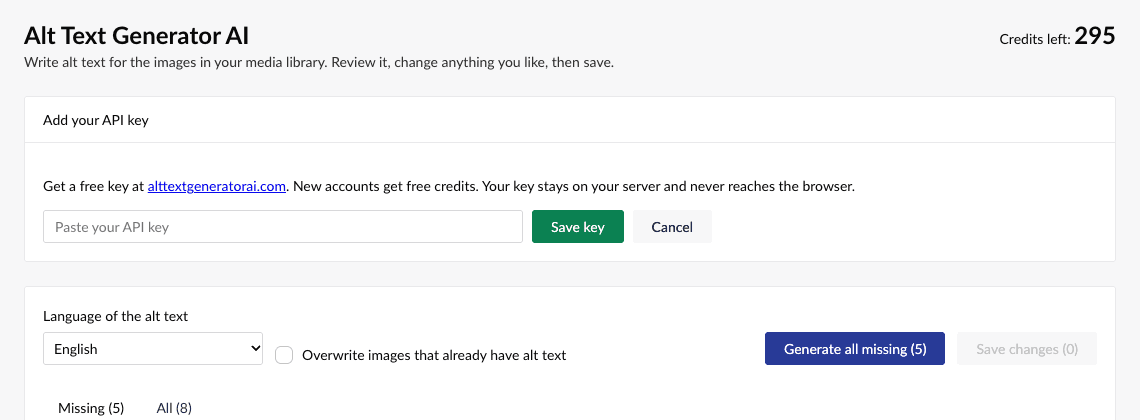
- Get your API key from the dashboard
- Paste the key into API key and click Save key
- Your credits show at the top of the page
💡Only administrators can change the key. To set it in a deployment, add AltTextGeneratorAI:ApiKey to appsettings.json.
Find Your Images
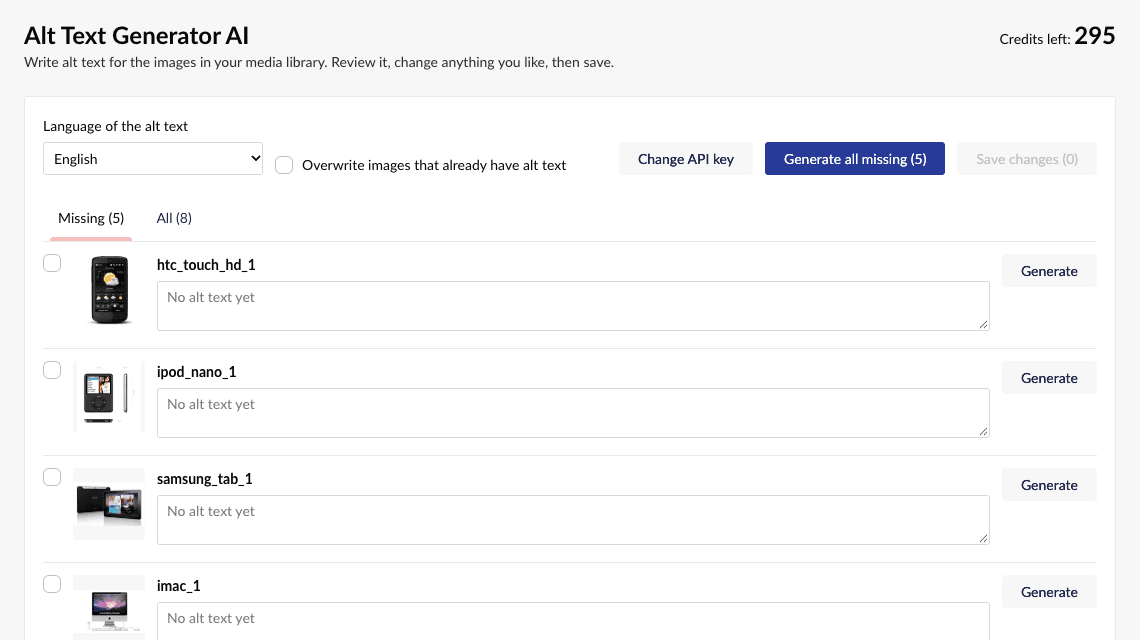
- The dashboard lists your images with a preview and shows your credits
- Missing lists the images that have no alt text. All shows everything
- Pick the language of the alt text from the list, from English to Zulu
Generate Alt Text
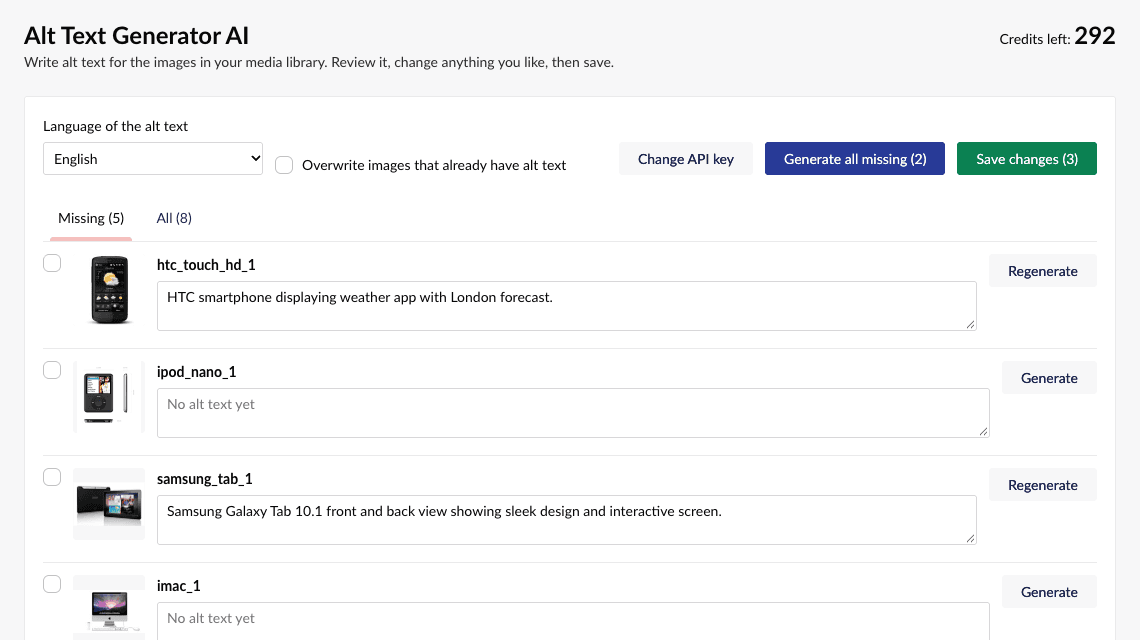
- Tick the images you want, or leave them all unticked
- Click Generate selected or Generate all missing. Each image uses 1 credit. You can also click Generate on a single image
- Read the results and edit any text you want to change
- Click Save changes to save them all at once
💡Generate all missing skips images that already have alt text. Tick an image to generate it anyway, or tick Overwrite.
Use It in Your Templates
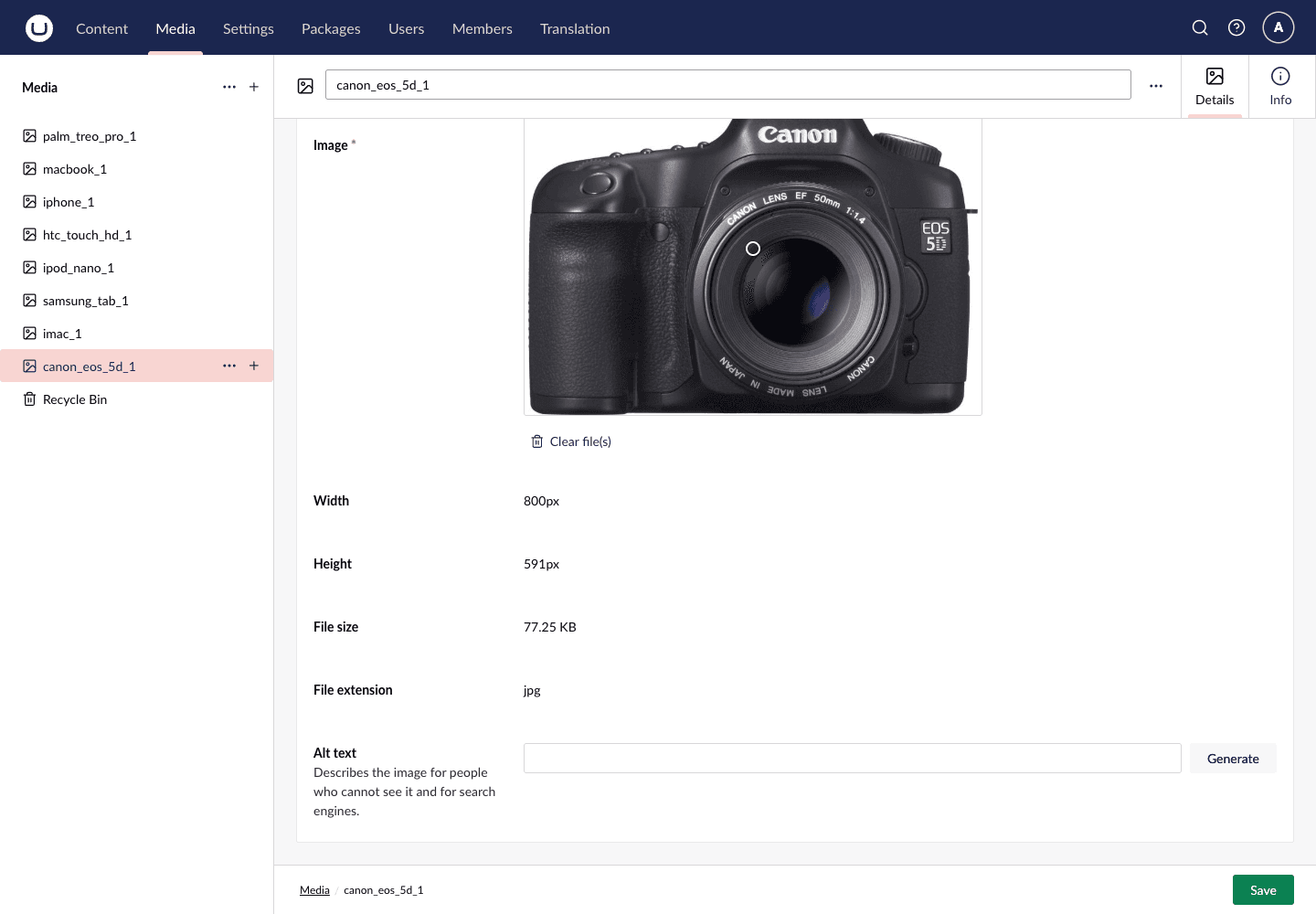
- The text is saved in the Alt text property of the image, which you can also edit by hand on the media item
- The first time you open the dashboard, the package adds this property to the Image media type for you, with a Generate button beside it for writing one description on the spot
- Show it in your templates with GetAltText(), as in the example
💡GetAltText() returns an empty string when an image has no alt text, so the file name is never printed by accident.
@using AltTextGeneratorAI.Umbraco

<img src="@image.Url()" alt="@image.Content.GetAltText()" />Bulk Dashboard
A dashboard in the Media section shows the images of your library with a preview and lists the ones missing alt text. Tick the ones you want and save them all at once.
Saved on the Image
The text goes into an Alt text property on the Image media type, which the package adds for you. Show it in your templates with one line.
Works on Umbraco 17
No other package needed. It works on Umbraco 17.
131 Languages
Choose the language of the alt text, and write it for your international audience.
Your Key Stays on Your Server
The API key is only used by Umbraco's server code. The browser never sees it.
Free Credits
Sign up to get free credits and test alt text generation on your own images.