Alt Text Generator Odoo Module
Generate SEO-optimized alt text for the images on your Odoo website and products, in bulk and in 131 languages

Alt Text Generator AI writes SEO-friendly alt text for your images with AI. The Odoo module adds a Bulk Alt Text screen under Website that lists every page image and product image missing alt text, with a thumbnail of each one. Tick the ones you want, press one button and see the text that was written. You can also generate alt text from your pages list or from a product's extra images. This step-by-step guide shows how to install and use it.
Better alt text helps your site's accessibility and image SEO, and saves hours of writing descriptions by hand. It works on Odoo 19 and needs only the Website app. Product images are supported when Website Sales is installed.
Install the Module
- Open the Odoo Apps page and download the module, or find it in the Apps menu of your Odoo by searching for Alt Text Generator AI
- Click Install. The Odoo Website app is required
- If you also use Website Sales, the Alt Text Generator AI - Shop add-on installs by itself and adds product images
💡Works on Odoo 19. Images are sent to alttextgeneratorai.com only when you press a Generate button.
# Self-hosted Odoo
./odoo-bin -d your_database -i alt_text_generator_aiAdd Your API Key
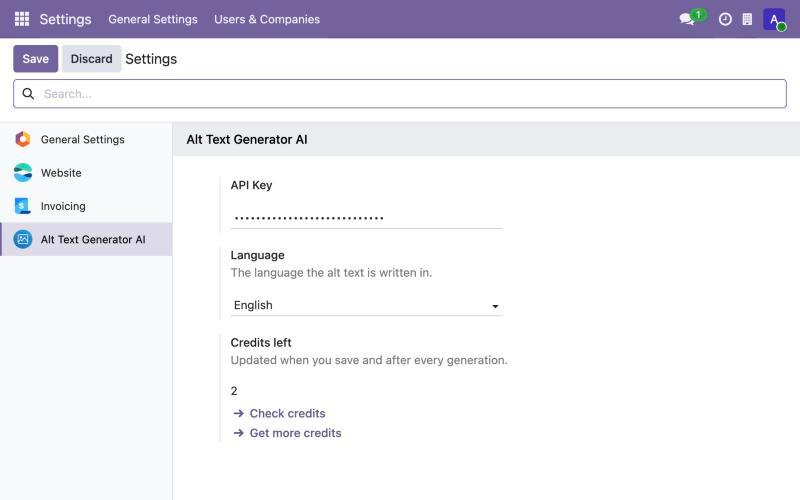
- Get your API key from the dashboard
- Open Settings and find Alt Text Generator AI in the left menu
- Paste the key into API Key, choose the language of the alt text and click Save
- Your credits left show right below. Click Check credits to refresh them
💡Only administrators can change the key.
Find Your Images
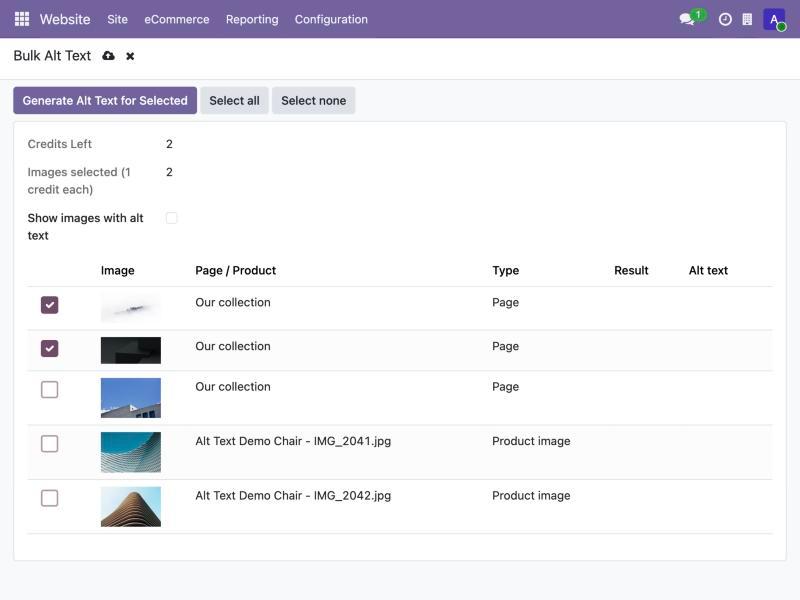
- Go to Website > Site > Bulk Alt Text
- The list shows every page image and product image that has no alt text, with a thumbnail, so you know exactly which image you are writing for
- Your credits and the number of selected images show at the top
- Untick any image you want to skip
Generate Alt Text
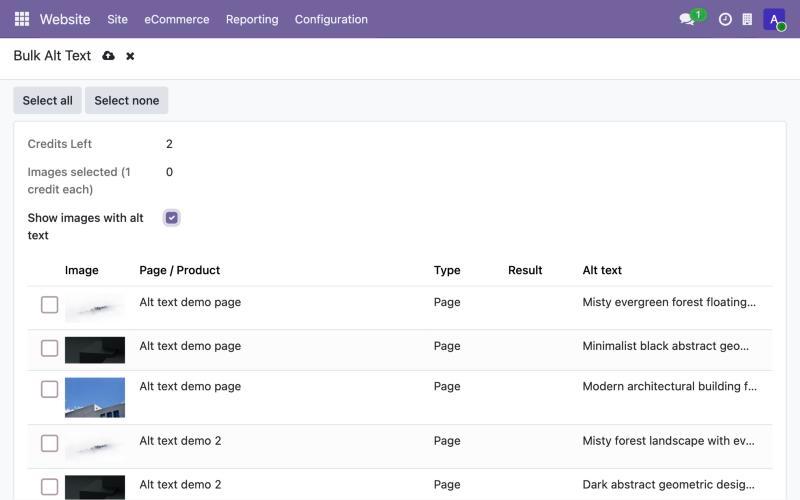
- Click Generate Alt Text for Selected. Each image uses 1 credit
- The generated text appears in the Alt text column and each row is marked Done
- To write existing alt text again, tick Show images with alt text, pick the images and generate them
💡Existing alt text is never changed unless you tick the image yourself. If your credits run out, everything already done is kept.
Generate From Your Pages
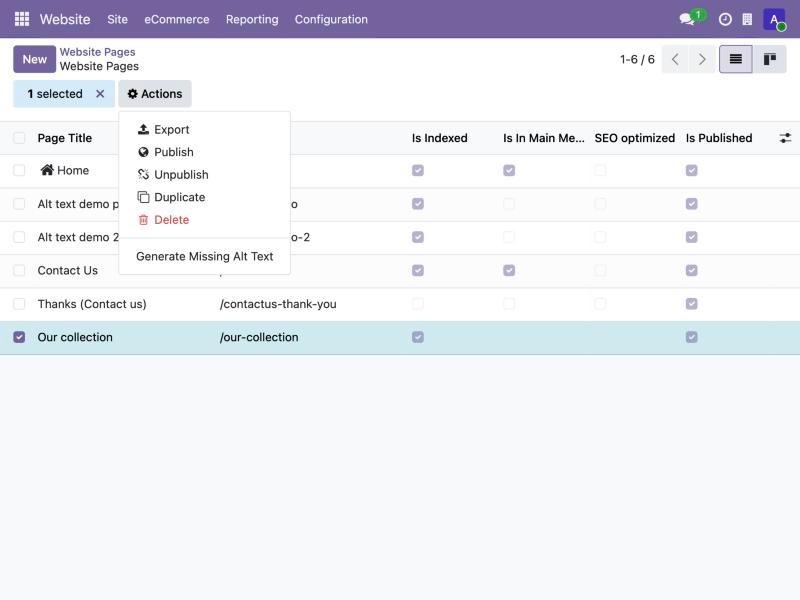
- Open Website > Site > Pages
- Select one or several pages, open Actions and click Generate Missing Alt Text
- The same button is on every page form. Only images without alt text are filled in
Product Images
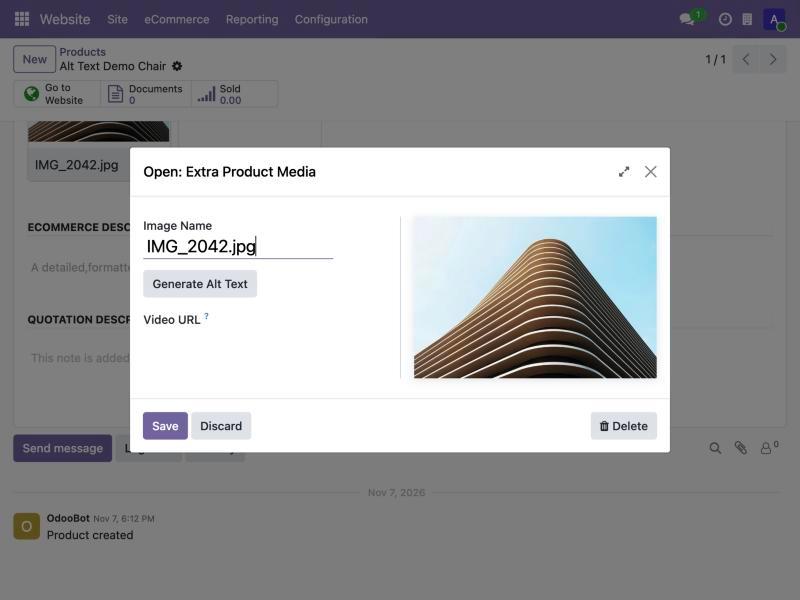
- With Website Sales installed, open a product and its Extra Product Media
- Click Generate Alt Text on an extra image. Odoo uses the image name as its alt text on the shop
- Product images also show up in the Bulk Alt Text screen
💡The generated description replaces the image name, which is what search engines and screen readers read on your product page.
Bulk Alt Text Screen
See every image that needs alt text with a thumbnail, tick the ones you want and generate them all with one button.
Pages and Products
Works on website page images and, with Website Sales, on extra product images. Odoo uses the product image name as its alt text on the shop.
Rewrite When You Want
Existing alt text is never touched unless you ask. Show the images that already have alt text and write it again, for example after changing your site language.
131 Languages
Choose the language of the alt text, and write it for your international audience.
Live Credits
Your remaining credits show in the settings and on the Bulk Alt Text screen, with a link to get more. It stops cleanly if they run out and keeps everything already done.
Free Credits
Sign up to get free credits and test alt text generation on your own images.
Works on Odoo 19
Installs on Odoo 19 with only the Website app. The Shop add-on installs by itself when Website Sales is present.
Only When You Press Generate
Images are sent to alttextgeneratorai.com only when you press a Generate button. Nothing runs in the background.